
Microsoft 365 AI integration: the connector looked simple, the permissions were not
Connecting an AI platform to Microsoft 365 sounds like a weekend job: register an app, add a connector, sign in, done. In practice, the hardest part of our recent Microsoft 365 AI integration rollout had nothing to do with the AI itself. It was deciding how much of the business the AI should be allowed to see and touch.
Across Australia, IT teams, businesses and managed service providers (MSPs) are in the same early phase of AI adoption. Leadership wants the productivity gains. Security and compliance teams want to know exactly what data leaves the tenant and who can act on it. And most organisations are stuck in the middle, asking one question: do we give the AI platform full access, keep it read-only, or allow it to write and execute?
This post shares the real challenges we faced with Microsoft 365 AI integration, what we learned about data security and least-privilege access, and the practical AI governance approach we now recommend to clients.
Microsoft Graph API permissions: read-only, read-write or full access?
Microsoft Graph is the front door to mail, calendars, Teams, SharePoint, OneDrive and directory data. Every capability an AI platform offers inside Microsoft 365 maps back to a Graph permission scope, and that is where the real decisions sit.
The problem is that Graph scopes are broad. A permission like Mail.Read does not mean "read the emails relevant to this task". It can mean every mailbox the identity can reach. Sites.ReadWrite.All does not mean "update one project site". It means every site in the tenant. Granting a scope is a bigger decision than the friendly name in the consent screen suggests. Microsoft's Graph permissions reference is worth reading in full before you approve anything.
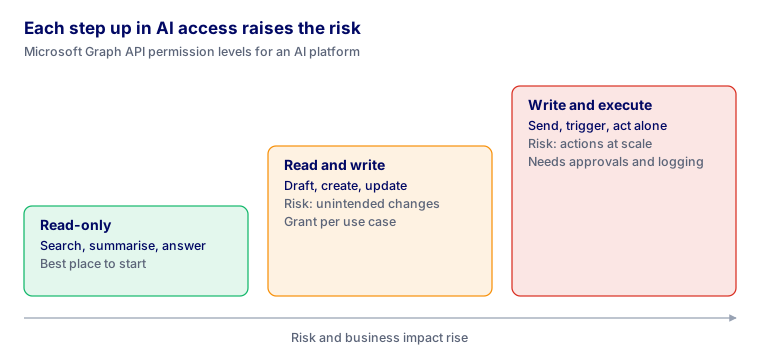
We found it useful to frame the choice as three levels of trust:
| Access level | What the AI can do | Typical use | Main risk |
|---|---|---|---|
| Read-only | Search, summarise and answer questions over mail, files and calendars | Knowledge search, meeting prep, document Q&A | Over-exposure of sensitive data the user should not see in aggregate |
| Read and write | Draft emails, create files, update lists and calendar entries | Drafting, note-taking, task updates | Unintended changes, content created in the user's name |
| Write and execute | Send mail, trigger flows, change permissions, act autonomously | Agents and automated workflows | Actions at scale with no human in the loop |
Most of our clients settled on read-only as the starting point, with write access granted per use case once the controls around it were proven. Full execute rights were reserved for narrowly scoped agents with logging and approval steps in place.
Microsoft Entra ID app registration: delegated vs application permissions
Every connection starts with an identity in Microsoft Entra ID. We worked through two broad patterns, and each came with its own trade-offs.
Dedicated SSO with central authentication. Users sign in to the AI platform with their Entra ID account, and the platform acts on their behalf. This keeps identity in one place, respects Conditional Access and MFA, and makes offboarding clean. The catch is that the experience depends heavily on how well the AI platform supports Entra ID, and some platforms only offer partial integration.
A custom app registration. You register an app in your own tenant and control its scopes, secrets and consent directly. This gives you far more visibility and control, but it also puts the burden of secret rotation, certificate management and consent governance on your team.
Inside an app registration, the most important choice is the permission type:
- Delegated permissions let the app act as the signed-in user. The AI can only reach what that user can already reach. This is the safer default for assistants and chat-style tools.
- Application permissions let the app act as itself, with no user present. It can reach data across the whole tenant. This is what background agents and scheduled automations need, and it is where most of the risk lives.
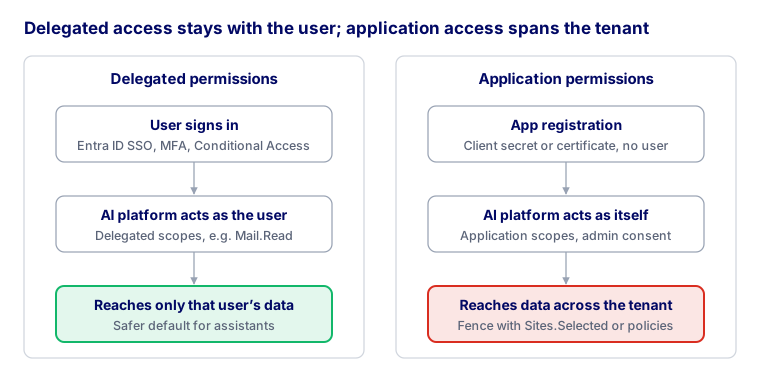
Our rule: delegated first, application only with a written justification, admin consent, and where possible, scoping controls such as Exchange application access policies or SharePoint Sites.Selected to fence the app into specific mailboxes or sites.
We saw several connectors request application permissions when delegated would have been enough, so it pays to challenge every consent request.
AI agent security: should we trust the skills and agents we build?
Once the connection works, teams quickly start building skills and agents: reusable instructions, automated workflows, and assistants that chain several actions together. This is where the value is, and it is also where trust gets tested.
An agent inherits every permission its identity holds. If it runs under an application registration with write access to SharePoint, a badly worded instruction or a malicious line hidden in a document it reads can turn into a real change in your tenant. The AI does not need to be "hacked" for this to happen. It only needs to follow text it should have treated as data.
Our answer to "should we trust them?" is: not by default. Trust is earned per agent, and we now treat each one like any other piece of software going into production:
- Give every agent its own identity, never a shared admin account.
- Grant the smallest set of scopes the agent needs, and review them quarterly.
- Require a human approval step before anything is sent, deleted or shared externally.
- Log every Graph call the agent makes and review the logs, especially early on.
- Keep a register of who built each skill or agent, what it does, and who owns it.
This is not about distrusting the people building them. It is about making sure a single mistake cannot quietly scale across the whole organisation.
Model Context Protocol (MCP) vs custom integration: which should you choose?
Not every Microsoft workload can be reached the same way. In our rollout, some applications worked through the AI platform's built-in connectors, some had to go through the Model Context Protocol (MCP), and a few needed a custom integration.
MCP is a promising open standard for letting an AI platform call external tools and data sources in a consistent way. It made several integrations faster to stand up. It also came with real limitations:
- Maturity. Many MCP servers are early-stage or community-built, with varying quality and support.
- Authentication. Not every MCP server handles Entra ID OAuth flows, token refresh or Conditional Access cleanly.
- Coarse tools. A server may expose a broad "read files" tool when you only want one library or folder.
- Visibility. Logging and auditing are often thinner than what your security team expects from a production integration.
- Hosting and ownership. Someone has to run, patch and monitor the server, and that responsibility is easy to overlook.
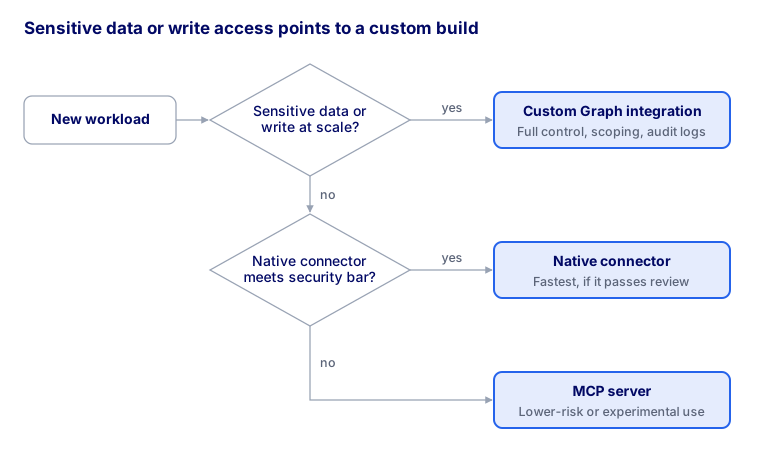
Where MCP fell short, we built custom integrations against Graph directly. A custom build costs more up front, but it lets you control exactly which endpoints are called, enforce your own scoping and approval logic, and log everything in the format your SIEM expects. For sensitive workloads such as HR, finance or client data, that control was worth the extra effort.
Rough rule: use native connectors where they meet your security bar, use MCP for lower-risk or experimental workloads, and custom-build anything that touches sensitive data or needs write access at scale.
Choosing an LLM: balancing AI cost optimisation and reasoning quality
The last big challenge was harnessing the large language model (LLM) itself. Most AI platforms offer several tiers of model, and the choice has a direct impact on both quality and cost.
Higher-tier models reason better. They follow complex instructions, handle multi-step tasks, and are noticeably more reliable when an agent has to decide what to do next. They also cost significantly more per request, and that cost compounds quickly when hundreds of staff or automated agents are calling them all day.
Lower-tier models are fast and cheap, and they are perfectly capable of summarising an email or tidying up a paragraph. But on harder tasks, such as interpreting a contract, planning a multi-step workflow or deciding whether an action is safe, their thinking patterns are weaker. In an agent with write access, a weaker decision is not just a worse answer. It can be a wrong action.
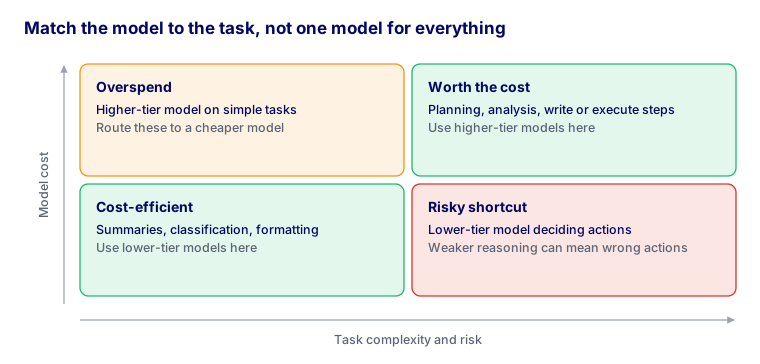
What worked for us was matching the model to the task rather than picking one model for everything:
- Use lower-tier models for high-volume, low-risk work: summaries, classification, formatting, simple search.
- Use higher-tier models for reasoning-heavy or high-risk work: planning, analysis, and any step that decides whether to write or execute.
- Route between them where the platform allows it, and measure cost per use case, not just total spend.
- Revisit the mix regularly. Model pricing and capability change fast, and last quarter's best choice may not be this quarter's.
A practical AI governance framework for Microsoft 365
If your organisation is about to connect an AI platform to Microsoft 365, this is the sequence we now follow with clients:
- Clean up access first. AI will surface whatever users can already reach. Fix overshared SharePoint sites, Teams and OneDrive links before you connect anything.
- Start read-only and delegated. Prove value with search and summarisation under the user's own permissions.
- Classify your data. Apply sensitivity labels so you know what must never be exposed to the AI platform.
- Choose the connection method per workload. Native connector, MCP, or custom build, based on data sensitivity and the access level needed.
- Grant write and execute access case by case. Each one with its own identity, minimal scopes, approval steps and logging.
- Match models to tasks. Balance cost and reasoning quality, and track spend per use case.
- Govern continuously. Review app registrations, consented scopes, agents and model costs on a regular schedule.
For Australian organisations, it is also worth mapping this against your obligations under the Privacy Act and frameworks such as the ACSC Essential Eight, particularly around application control, restricting administrative privileges and logging.
Frequently asked questions
What Microsoft Graph API permissions does an AI platform need?
It depends on the use case. Search and summarisation usually need only delegated read scopes such as Mail.Read, Files.Read or Sites.Read.All. Drafting and automation need write scopes, which should be granted per use case with approval steps.
What is the difference between delegated and application permissions?
Delegated permissions let the app act as the signed-in user, limited to what that user can access. Application permissions let the app act on its own across the whole tenant, so they carry far more risk.
Is it safe to give AI agents write access to Microsoft 365?
It can be, with controls. Give each agent its own identity, apply least-privilege scopes, require human approval for high-impact actions, and log every Graph API call.
Should we use MCP or build a custom integration?
MCP is quick to set up and suits lower-risk workloads. For sensitive data or write access at scale, a custom Microsoft Graph integration gives better control, scoping and audit logging.
How do we control LLM costs?
Match the model to the task. Use lower-cost models for high-volume, simple work and reserve higher-tier models for complex reasoning and decisions that trigger actions.
Key takeaways for secure AI adoption in Australia
Connecting AI to Microsoft 365 is less a technical integration and more a trust decision. The connector is the easy part. The hard part is deciding how much access the AI platform gets, under whose identity, through which integration path, and with which model doing the thinking.
There is no single right answer yet, and the organisations doing this well are the ones moving deliberately: starting small, proving controls, and widening access only when they are confident in it.
If your team is weighing up how to connect an AI platform to your Microsoft environment, or you are stuck on Graph permissions, app registrations or agent governance, we would be glad to help. Get in touch with the ISOP team to talk through your environment.
Starting out in IT support yourself? Microsoft 365 and Entra ID administration is everyday Helpdesk work — see a day in the life of an IT Helpdesk job.